2017-06-08 09:43:27 -07:00
# Vim Prettier
<details>
<summary><strong>Table of Contents</strong></summary>
- [Vim and Prettier integration ](#vim-and-prettier-integration )
* [Neoformat ](#neoformat )
+ [Neoformat - Installation ](#neoformat---installation )
+ [Neoformat - Usage ](#neoformat---usage )
+ [Neoformat - Other autocmd events ](#neoformat---other-autocmd-events )
+ [Neoformat - Customizing Prettier ](#neoformat---customizing-prettier )
2017-06-18 18:06:20 -04:00
* [vim-prettier ](#vim-prettier-1 )
2017-06-08 09:43:27 -07:00
+ [vim-prettier - Installation ](#vim-prettier---installation )
+ [vim-prettier - Usage ](#vim-prettier---usage )
+ [vim-prettier - Configuration ](#vim-prettier---configuration )
2017-06-28 17:20:34 +01:00
* [ALE ](#ale )
2017-06-30 22:47:15 -07:00
+ [ALE - Installation ](#ale---installation )
+ [ALE - Usage ](#ale---usage )
+ [ALE - Configuration ](#ale---configuration )
2017-06-18 18:06:20 -04:00
* [Running manually ](#running-manually )
2017-06-08 09:43:27 -07:00
+ [Running Prettier manually in Vim ](#running-prettier-manually-in-vim )
</details>
--------------------------------------------------------------------------------
## Vim and Prettier integration
2017-07-19 18:06:54 -07:00
Vim users can simply install either [sbdchd ](https://github.com/sbdchd )/[neoformat ](https://github.com/sbdchd/neoformat ), [w0rp ](https://github.com/w0rp )/[ale ](https://github.com/w0rp/ale ), or [prettier ](https://github.com/prettier )/[vim-prettier ](https://github.com/prettier/vim-prettier ).
2017-06-08 09:43:27 -07:00
--------------------------------------------------------------------------------
### Neoformat
#### Neoformat - Installation
Add [sbdchd ](https://github.com/sbdchd )/[neoformat ](https://github.com/sbdchd/neoformat ) to your list based on the tool you use:
```vim
Plug 'sbdchd/neoformat'
```
#### Neoformat - Usage
Then make Neoformat run on save:
```vim
2017-06-18 13:21:44 +05:00
autocmd BufWritePre *.js Neoformat
2017-06-08 09:43:27 -07:00
```
#### Neoformat - Other `autocmd` events
You can also make Vim format your code more frequently, by setting an `autocmd` for other events. Here are a couple of useful ones:
* `TextChanged` : after a change was made to the text in Normal mode
* `InsertLeave` : when leaving Insert mode
For example, you can format on both of the above events together with `BufWritePre` like this:
```vim
2017-06-18 13:21:44 +05:00
autocmd BufWritePre , TextChanged , InsertLeave *.js Neoformat
2017-06-08 09:43:27 -07:00
```
See `:help autocmd-events` in Vim for details.
#### Neoformat - Customizing Prettier
If your project requires settings other than the default Prettier settings, you can pass arguments to do so in your `.vimrc` or [vim project ](http://vim.wikia.com/wiki/Project_specific_settings ), you can do so:
```vim
autocmd FileType javascript setlocal formatprg = prettier \ -- stdin \ -- parser \ flow \ -- single - quote \ -- trailing - comma \ es5
" Use formatprg when available
let g :neoformat_try_formatprg = 1
```
2017-06-18 13:21:44 +05:00
Each space in prettier options should be escaped with `\` .
2017-06-08 09:43:27 -07:00
--------------------------------------------------------------------------------
### vim-prettier
2017-07-19 18:06:54 -07:00
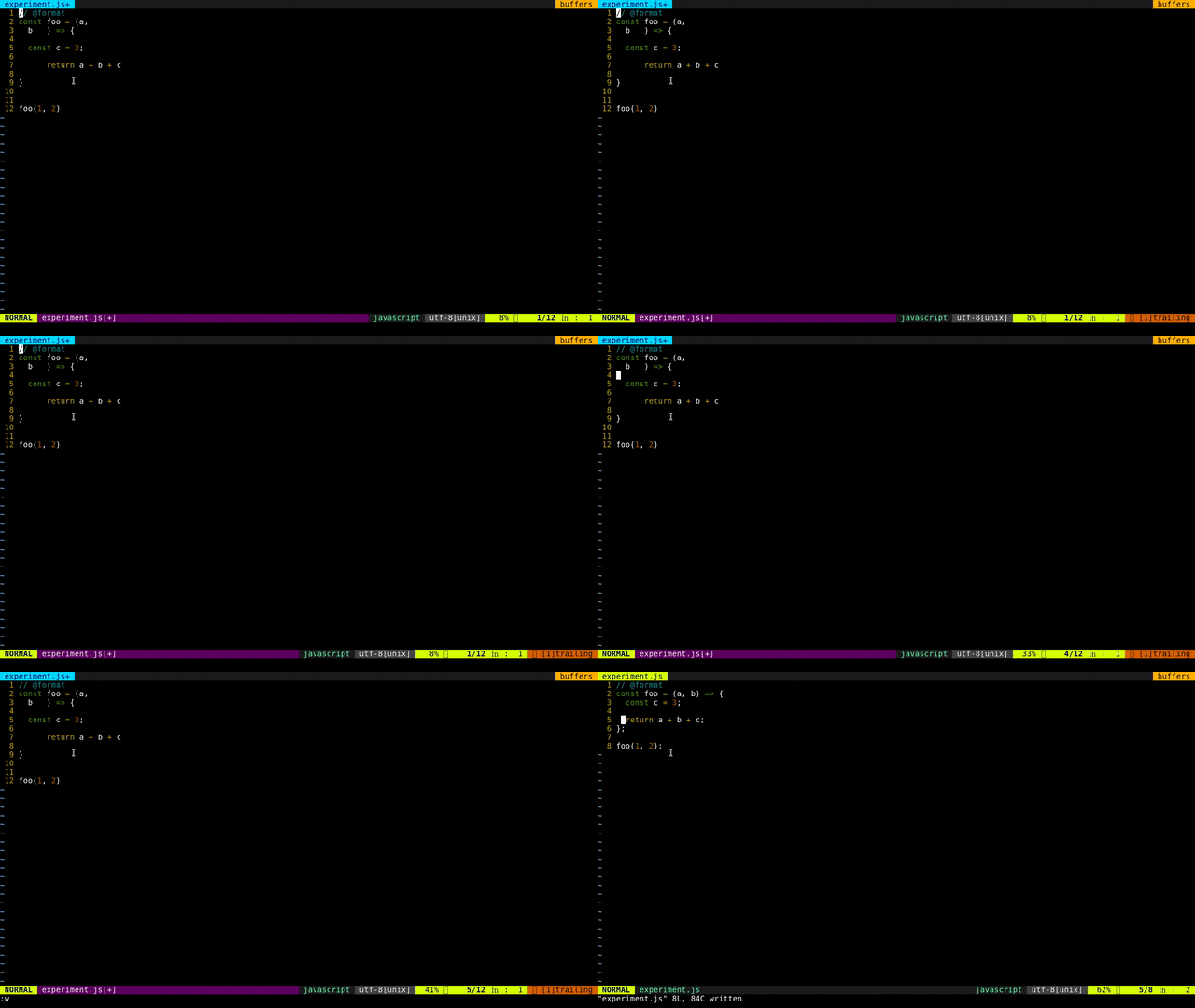
2017-06-08 09:43:27 -07:00
#### vim-prettier - Installation
Install with [vim-plug ](https://github.com/junegunn/vim-plug ), assumes node and yarn|npm installed globally.
By default it will auto format **javascript** , **typescript** , **less** , **scss** and **css** files that have "@format " annotation in the header of the file.
```vim
" post install (yarn install | npm install) then load plugin only for editing supported files
2017-07-19 18:06:54 -07:00
Plug 'prettier/vim-prettier' , {
2017-06-08 09:43:27 -07:00
\ 'do' : 'npm install' ,
\ 'for' : ['javascript' , 'typescript' , 'css' , 'less' , 'scss' ] }
```
If using other vim plugin managers or doing manual setup make sure to have `prettier` installed globally or go to your vim-prettier directory and either do `npm install` or `yarn install`
When installed via vim-plug, a default prettier executable is installed inside vim-prettier.
vim-prettier executable resolution:
1. Tranverse parents and search for Prettier installation inside `node_modules`
2. Look for a global prettier installation
3. Use locally installed vim-prettier prettier executable
#### vim-prettier - Usage
Prettier by default will run on auto save but can also be manualy triggered by:
```vim
< Leader > p
```
or
```vim
: Prettier
```
If your are on vim 8+ you can also trigger async formatting by:
```vim
: PrettierAsync
```
#### vim-prettier - Configuration
Disable auto formatting of files that have "@format " tag
```vim
let g :prettier #autoformat = 0
```
The command `:Prettier` by default is synchronous but can also be forced async
```vim
let g :prettier #exec_cmd_async = 1
```
By default parsing errors will open the quickfix but can also be disabled
```vim
let g :prettier #quickfix_enabled = 0
```
To enable vim-prettier to run in files without requiring the "@format " doc tag.
First disable the default autoformat, then update to your own custom behaviour
Running before saving sync:
```vim
let g :prettier #autoformat = 0
autocmd BufWritePre *.js , *.css , *.scss , *.less Prettier
```
Running before saving async (vim 8+):
```vim
let g :prettier #autoformat = 0
autocmd BufWritePre *.js , *.css , *.scss , *.less PrettierAsync
```
Running before saving, changing text or leaving insert mode:
```vim
" when running at every change you may want to disable quickfix
let g :prettier #quickfix_enabled = 0
let g :prettier #autoformat = 0
autocmd BufWritePre , TextChanged , InsertLeave *.js , *.css , *.scss , *.less PrettierAsync
```
**Vim-prettier default formatting settings are different from the prettier defaults, but they can be configured**
```vim
" max line lengh that prettier will wrap on
g :prettier #config #print_width = 80
" number of spaces per indentation level
g :prettier #config #tab_width = 2
" use tabs over spaces
g :prettier #config #use_tabs = 'false'
" print semicolons
g :prettier #config #semi = 'true'
" single quotes over double quotes
g :prettier #config #single_quote = 'true'
" print spaces between brackets
g :prettier #config #bracket_spacing = 'false'
" put > on the last line instead of new line
g :prettier #config #jsx_bracket_same_line = 'true'
" none|es5|all
g :prettier #config #trailing_comma = 'all'
" flow|babylon|typescript|postcss
g :prettier #config #parser = 'flow'
```
--------------------------------------------------------------------------------
2017-06-28 17:20:34 +01:00
### ALE
2017-06-28 12:37:37 -04:00
#### ALE - Installation
2017-06-28 17:20:34 +01:00
[ALE ](https://github.com/w0rp/ale ) is an asynchronous lint engine for Vim that
also has the ability to run formatters over code, including Prettier. For ALE
to work you'll have to be using either Vim 8 or Neovim as ALE makes use of the
asynchronous abilities that both Vim 8 and Neovim provide.
The best way to install ALE is with your favourite plugin manager for Vim, such
as [Vim-Plug ](https://github.com/junegunn/vim-plug ):
```vim
Plug 'w0rp/ale'
```
You can find further instructions on the [ALE repository ](https://github.com/w0rp/ale#3-installation ).
2017-06-28 12:37:37 -04:00
#### ALE - Usage
2017-06-28 17:20:34 +01:00
Once you've installed ALE you need to enable the Prettier fixer:
```vim
let g :ale_fixers = {}
let g :ale_fixers ['javascript' ] = ['prettier' ]
```
ALE will first use the Prettier installed locally (in
`node_modules/.bin/prettier` ) before looking for a global installation.
You can then run `:ALEFix` in a JavaScript file to run Prettier.
2017-06-28 12:37:37 -04:00
#### ALE - Configuration
2017-06-28 17:20:34 +01:00
To have ALE run `prettier` when you save a file you can tell ALE to run
automatically:
```vim
let g :ale_fix_on_save = 1
```
To configure Prettier, you can set `g:ale_javascript_prettier_options` . This is
a string that will be passed through to the Prettier command line tool:
```vim
let g :ale_javascript_prettier_options = '--single-quote --trailing-comma es5'
```
2017-10-31 16:26:50 -04:00
If you use Prettier config files, you must set
`g:ale_javascript_prettier_use_local_config` to have ALE respect them:
```vim
let g :ale_javascript_prettier_use_local_config = 1
```
2017-06-28 17:20:34 +01:00
--------------------------------------------------------------------------------
2017-06-08 09:43:27 -07:00
### Running manually
#### Running Prettier manually in Vim
If you need a little more control over when prettier is run, you can create a
custom key binding. In this example, `gp` (mnemonic: "get pretty") is used to
run prettier (with options) in the currently active buffer:
```vim
nnoremap gp :silent %! prettier -- stdin -- trailing - comma all -- single - quote < CR >
```